How to Create Custom Charts in Your Notion: A Step-by-Step Guide
Updated: April 6, 2026
Custom charts can elevate your Notion page, making it an invaluable tool for tracking, visualizing, and analyzing your data. By integrating custom charts with your Notion database, you can identify trends and make informed decisions with ease. This comprehensive guide walks you through the process of creating and embedding custom charts into your Notion page.
If you don't have an account, read this guide to set up your account.
Step 1: Add a New Chart #
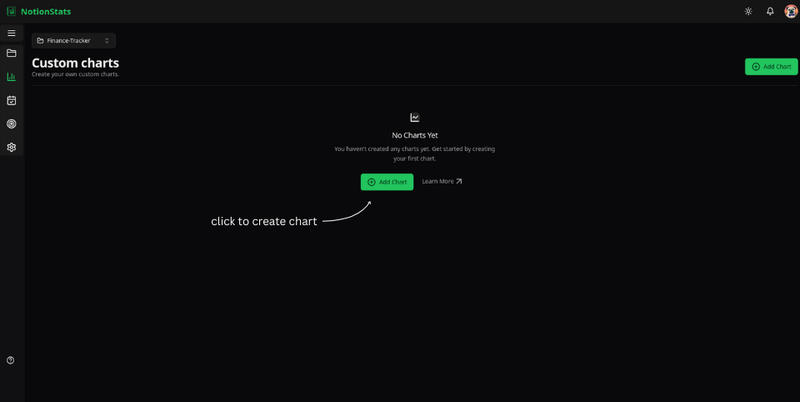
On the chart page, click the Add Chart button to open a modal form.
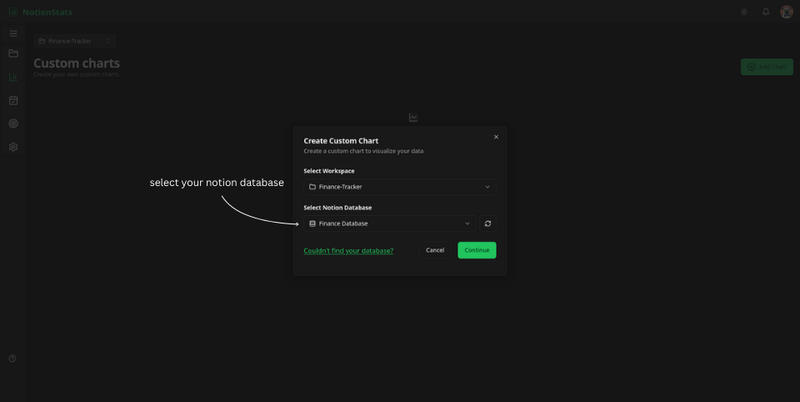
Fill out the form:
- Workspace: Already selected, but you can change it when needed.
- Notion Database: Pick the specific Notion database you want to use for your chart data.
Note: If your Notion database does not appear immediately, please wait a moment while your databases load. This can happen the first time you connect Notion or after you recently shared a new page/database with the integration. It is normal and does not mean you did anything wrong
Submit the form to proceed to the chart editor.
Step 2: Select Your Chart #
The chart editor has a Templates section, a Settings section, and a Chart Preview section.
Templates Section #
Here you'll find several quick templates that you can use directly.
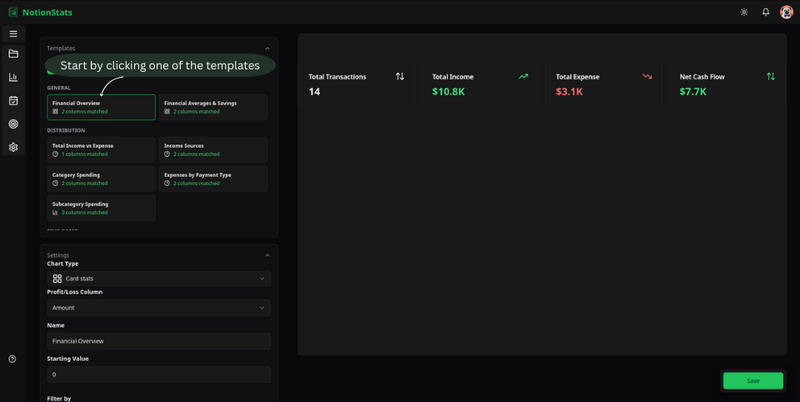
Chart Preview Section #
As you configure the settings, the chart updates in real time, allowing you to refine it. Once satisfied, click Save. At the top right, an Embed Link will be generated.
Your chart will be saved, and you can find it on the chart page.

Settings Section (optional) #
-
You can edit the template here or create your own chart with custom settings.
-
The following settings are available:
-
Chart Type: Select the type of chart you want to create.
-
Name: Enter a name for your chart.
-
Label: Add a label for the values displayed on your chart.
-
X-Axis Options: Select fields like date, checkbox, select, or title from your Notion database.
-
Y-Axis Options: Choose numerical fields for the y-axis.
-
Advanced Options:
- Enable the "Cumulative" radio button to accumulate y-axis values. When selected, a Starting Value input field appears for setting the initial value.
Step 3: Embed the Chart in Notion #
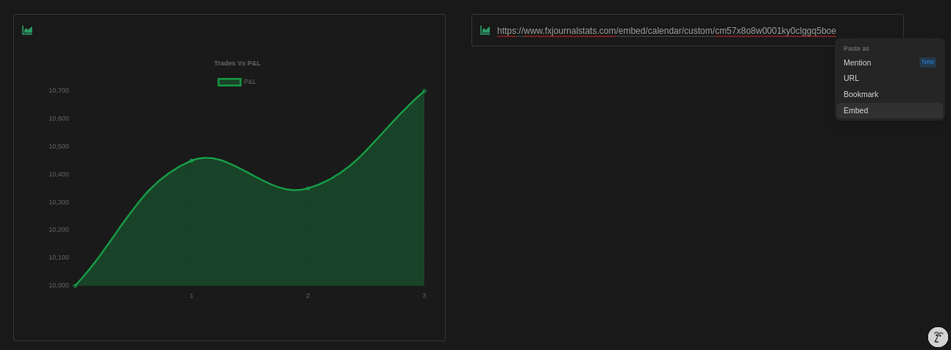
Copy the embed link and paste it into your Notion page.
Why Custom Charts in Notion Matter #
Creating custom charts allows you to analyze your data visually, track performance trends, and make data-driven decisions. With features like cumulative charts and real-time previews, your Notion journal becomes a powerful analytics tool.
Optimize your workflows today by following this guide and take your Notion analytics to the next level!