How to Structure Your Notion Subscription Database for the Best Analytics
Updated: April 3, 2026
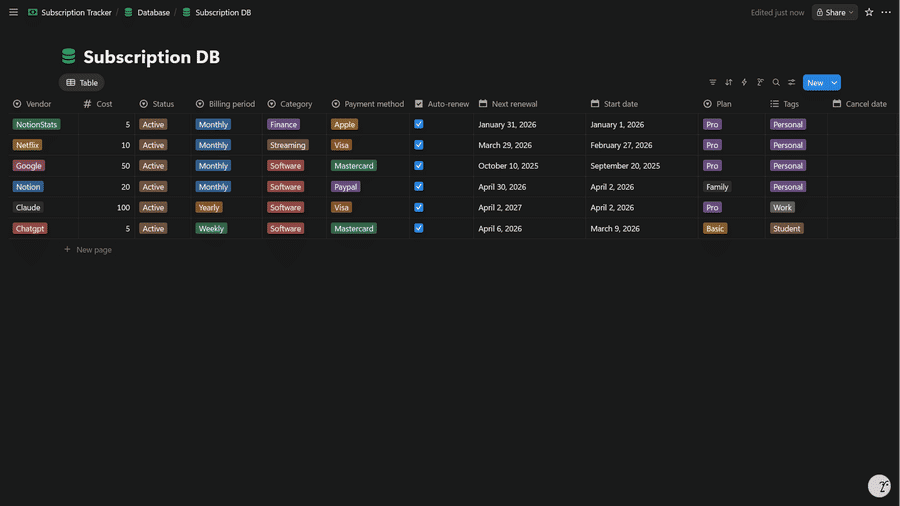
If you want accurate subscription analytics (monthly spend, renewals in the next 7/30 days, renewal heatmaps, and spend breakdowns), your Notion database needs a few specific properties with the right types.
This guide shows the best-practice single-database setup for a subscription tracker so NotionStats can map your columns cleanly and compute reliable stats.
If you want to skip setup, you can duplicate my ready-to-use Notion Subscriptions template and customize it.
Table of Contents
Database Schema (Copy This)
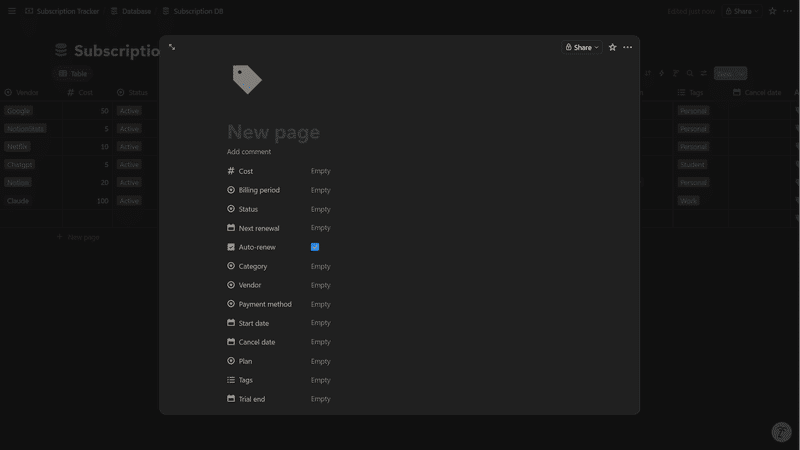
Create one Notion database named Subscriptions Database and add these properties.
- Required
- Cost: Number (cost per billing period)
- Billing Period: Select (Weekly / Monthly / Quarterly / Yearly)
- Status: Select — the value
Activeis what drives renewal analytics (see note below) - Next Renewal: Date
- Auto-renew: Checkbox — must be checked for a subscription to appear in renewal charts
- Required for accurate history
- Start Date: Date — historical renewals are clamped to this date so past months only show renewals after the subscription actually started. If it's missing, history falls back to the last 12 months, which can show renewals for months before the subscription existed.
- Recommended
- Cancel Date: Date — setting this removes the subscription from renewal charts entirely
- For breakdown charts
- Category: Select (e.g., Work, Entertainment, Utilities)
- Vendor: Select (e.g., Netflix, Notion, Google)
- Payment Method: Select (e.g., Visa, PayPal, Apple Pay)
Note on Status values. You can use any Status labels you like (e.g.
Trial,Paused,Cancelled) for your own workflow, but only rows whose Status is exactlyActiveare included in renewal analytics. Trials and paused subscriptions won't generate renewal events until you switch them toActive.
Data Entry Rules That Keep Analytics Accurate
These are the most common reasons subscription analytics look “off”.
- Enter cost per period
- If Billing Period is Monthly, Cost should be the monthly amount (not yearly).
- Keep Billing Period labels clean
- Use words like Weekly/Monthly/Quarterly/Yearly (or Annual). Avoid abbreviations that don’t include these keywords.
- Use
Activeas the Status for live subscriptions- Only rows with Status exactly equal to
Activeappear in renewal analytics. Anything else (Trial, Paused, Cancelled, Expired, etc.) is excluded.
- Only rows with Status exactly equal to
- Always fill in Next Renewal
- Next Renewal is the anchor NotionStats walks forward and backward from. Without it the row is skipped.
- Fill in Start Date for every subscription
- Start Date is what prevents phantom renewals for months before the subscription existed. Even a rough date is better than leaving it blank.
- Leave Cancel Date empty while the subscription is active
- Any value in Cancel Date excludes the row from renewal charts, even if the cancellation is in the future.
If you’re new to NotionStats setup, start here: Guide to adding analytics to your Notion.
Troubleshooting / FAQ
My subscription is being treated as inactive
Check your Status value. NotionStats only treats rows with Status exactly equal to Active as live. Anything else — including Trial, Paused, Cancelled, Expired, or custom variants — is excluded from renewal charts.
Renewal charts are empty (or missing renewals)
A subscription must meet all of these conditions to appear in renewal charts:
- Status is exactly
Active. - Auto-renew is checked.
- Cancel Date is empty.
- Cost is a non-zero number.
- Next Renewal has a date.
If any one is off, the row is skipped entirely (the renewal date doesn't matter — a future cancel date or unchecked auto-renew still removes the row).
Past months show renewals that shouldn't exist
This happens when Start Date is empty. Without it, NotionStats walks renewals backward up to 12 months, which can emit occurrences for months before the subscription actually began. Fill in Start Date on the affected row and the phantom history disappears.
Breakdown charts don’t group the way I expect
Make sure Category, Vendor, and Payment Method are Select properties (not plain text). Grouping works best on select fields.
Suggested Posts

Step-by-Step Guide to Adding Custom Analytics to Notion with NotionStats
Learn how to enhance your Notion with powerful analytics using NotionStats. This guide walks you through creating custom charts and calendars, linking them to your Notion database, and tracking data visually for better insights and productivity.
Read more
How to Create Custom Charts in Your Notion: A Step-by-Step Guide
Follow this step-by-step guide to create and embed custom charts into your Notion pages...
Read more
How to Create and Track Milestones in Your Notion Workspace: A Step-by-Step Guide
Learn how to create, customize, and embed milestones in your Notion workspace. Track progress across finance, subscriptions, habits, fitness, and more with auto-updating goal displays.
Read more