How to Structure Your Notion Fitness Database for the Best Analytics
Updated: April 3, 2026
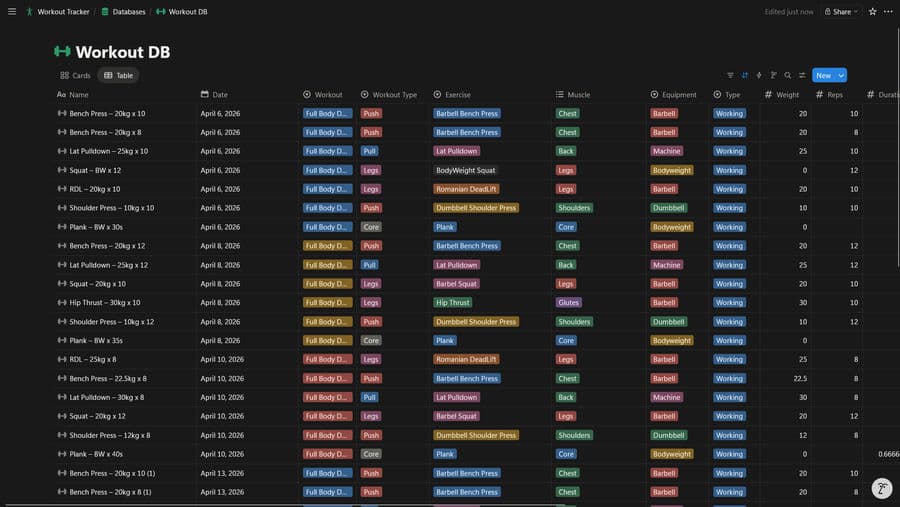
NotionStats can generate fitness analytics like training volume trends, exercise frequency, top weights, estimated 1RM progress, cardio trends, and body metric tracking — as long as your Notion databases have the right columns.
If you want to skip setup, you can duplicate my ready-to-use Notion Fitness template and customize it.
Table of Contents
Database Schema (Copy This)
Workout Log (recommended)
Create one Notion database named Workout Database with:
- Required
- Date: Date
- Exercise: Select
- Weight: Number
- Reps: Number
- Muscle Group: Select
- Equipment: Select
- Recommended
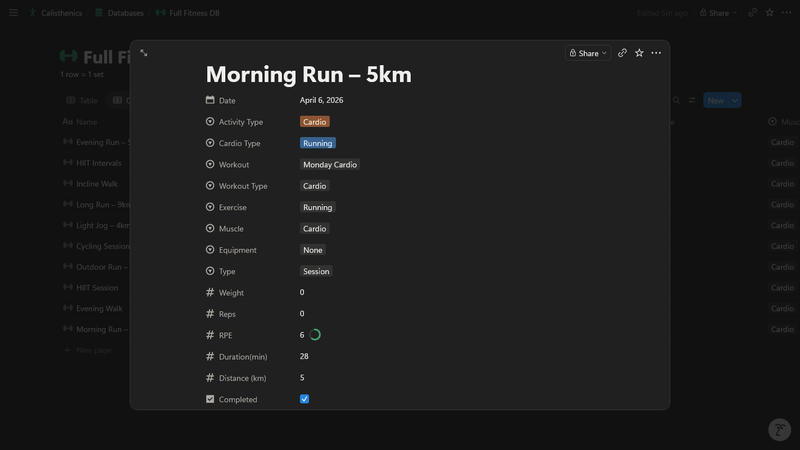
- RPE: Number (1–10)
- Split: Select (Push/Pull/Legs/etc.)
- Duration: Number (minutes)
- Volume: Number (or Formula returning number)
- Activity Type: Select (Strength / Cardio)
- Distance: Number (kilometers)
- Cardio Type: Select (Run/Cycle/Row/Walk/etc.)
For the best results with cardio templates and milestones:
- Keep Duration in minutes and Distance in kilometers.
- Mark cardio rows with Activity Type = Cardio.
- For strength rows, keep using your existing Weight/Reps/Volume fields and set Activity Type = Strength.

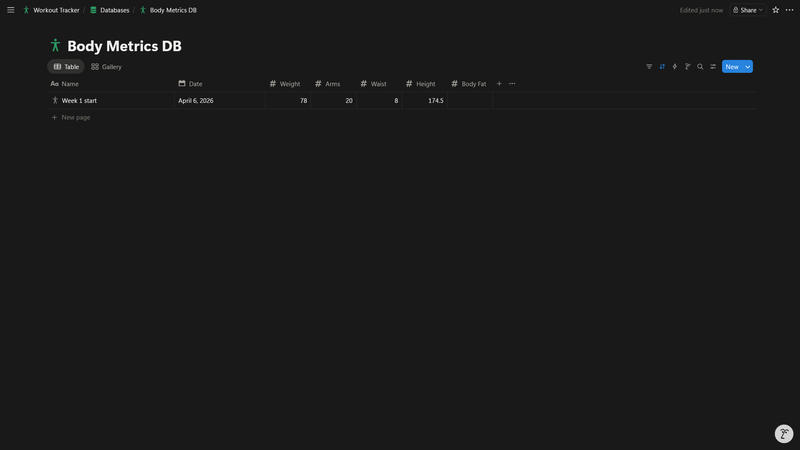
Body Metrics (optional, but supported)
Create a second Notion database named Body Metrics Database with:
- Date: Date
- One or more metric columns as Number:
- Weight, Waist, Arms, Body Fat, Height, etc.
If you’re new to NotionStats setup, start here: Guide to adding analytics to your Notion.
Troubleshooting / FAQ
My volume charts are empty
Make sure:
- Every workout row has a valid Date
- Your Volume column is numeric (Number or Formula returning number)
My “Exercise Frequency” chart is messy
Use Exercise as a Select property and avoid near-duplicates (e.g., “Bench Press” vs “Benchpress”).
Estimated 1RM isn’t showing progression
You need a numeric 1RM Estimate column (Number or Formula) and a valid Date. If you don’t store 1RM explicitly, NotionStats can still estimate it from Weight + Reps in some stats — but charts work best with an explicit 1RM column.
Suggested Posts

Step-by-Step Guide to Adding Custom Analytics to Notion with NotionStats
Learn how to enhance your Notion with powerful analytics using NotionStats. This guide walks you through creating custom charts and calendars, linking them to your Notion database, and tracking data visually for better insights and productivity.
Read more
How to Create Custom Charts in Your Notion: A Step-by-Step Guide
Follow this step-by-step guide to create and embed custom charts into your Notion pages...
Read more
How to Create and Track Milestones in Your Notion Workspace: A Step-by-Step Guide
Learn how to create, customize, and embed milestones in your Notion workspace. Track progress across finance, subscriptions, habits, fitness, and more with auto-updating goal displays.
Read more