How to Structure Your Notion Finance Database for the Best Analytics
Updated: April 5, 2026
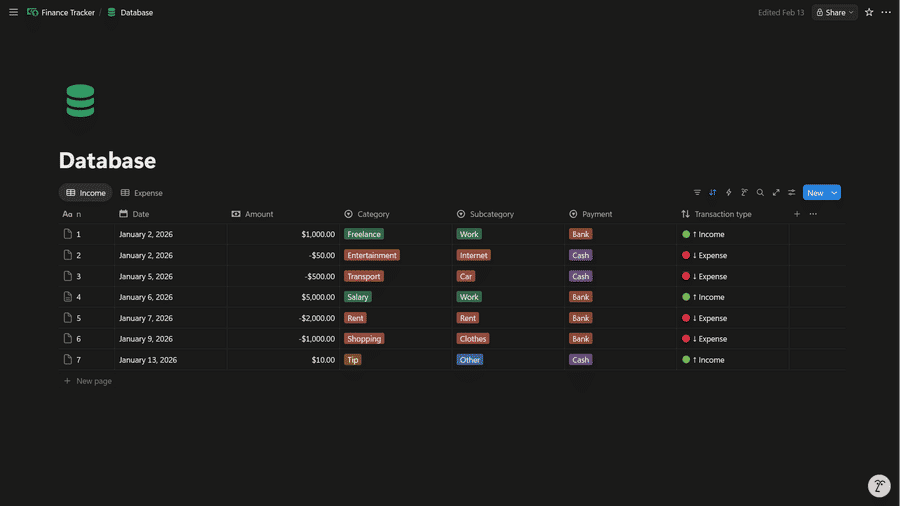
If you want clean finance analytics in NotionStats (income vs expense, spending by category, payment method breakdowns, and net worth over time), your Notion database needs a few key properties with the right types and conventions.
If you want to skip setup, you can duplicate my ready-to-use NotionFinance template and customize it.
Table of Contents
Database Schema (Copy This)
Create one Notion database named Finance Database and add these properties.
- Required
- Name: Title (optional, but nice for readability)
- Date: Date
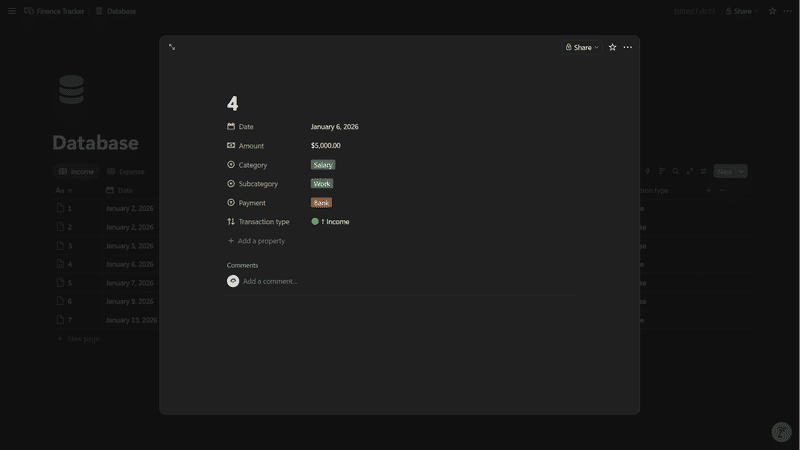
- Amount: Number (positive for income, negative for expense)
- Recommended (for breakdown charts)
- Category: Select (e.g., Rent, Groceries, Salary, Subscriptions)
- Payment Type: Select (e.g., Cash, Debit, Credit Card, Bank Transfer)
- Subcategory: Select (optional, e.g., Groceries → Produce)
Data Entry Rules That Keep Analytics Accurate
These are the most common reasons finance analytics look wrong.
- Keep Amount signed
- Don’t store expenses as positive numbers.
- Use Select for grouping fields
- Category/Payment Type/Subcategory should be Select to avoid typos creating “duplicate categories”.
If you’re new to NotionStats setup, start here: Guide to adding analytics to your Notion.
Troubleshooting / FAQ
My income vs expense chart looks inverted
Check Amount sign. Income must be positive and expenses must be negative.
Category charts are messy / duplicated
Make sure Category is a Select property and you’re consistently using the same options.
Net worth over time has gaps
Make sure every transaction row has a valid Date. Date-based charts can’t bucket rows without dates.
Suggested Posts

Step-by-Step Guide to Adding Custom Analytics to Notion with NotionStats
Learn how to enhance your Notion with powerful analytics using NotionStats. This guide walks you through creating custom charts and calendars, linking them to your Notion database, and tracking data visually for better insights and productivity.
Read more
How to Create Custom Charts in Your Notion: A Step-by-Step Guide
Follow this step-by-step guide to create and embed custom charts into your Notion pages...
Read more
How to Create and Track Milestones in Your Notion Workspace: A Step-by-Step Guide
Learn how to create, customize, and embed milestones in your Notion workspace. Track progress across finance, subscriptions, habits, fitness, and more with auto-updating goal displays.
Read more